As a WordPress developer, understanding cache is very important.
Think of a cache as a shortcut memory. Here is how I explain it using a Restaurant Analogy. 🍔
What is a Cache?
Imagine a customer walks into a restaurant and orders a complex, dish. The chef has to go to the pantry, chop the vegetables, cook the meat, plate it, and serve it. This takes 20 minutes.
Now imagine 50 more customers walk in and order the same dish. If the chef cooks each one from scratch, the kitchen slows to a crawl, and customers wait a long time.
Instead, the chef cooks a massive batch of that dish ahead of time and keeps it warm under a heat lamp. When a new customer orders it, the waiter scooping it onto a plate takes 10 seconds.
The “From Scratch” process = WordPress loading PHP files, querying the MySQL database, and building an HTML page.
The “Heat Lamp” = The Cache. It stores a pre-built, flat HTML copy of the page so the server doesn’t have to rebuild it every single time.
Why LiteSpeed Cache (LSCache) is Different:
Most WordPress caching plugins (like WP Rocket or W3 Total Cache) operate at the PHP (application) level. When a request comes in, WordPress still has to boot up a little bit of PHP just to check if a cached file exists.
LiteSpeed Cache is a server-level cache. Because your site is hosted on a LiteSpeed Web Server, the plugin acts as a controller. It tells the server exactly what to cache and when to throw it away. When a visitor requests a page, the server delivers the pre-built HTML file before WordPress or PHP even turns on. This results in an incredibly fast Time To First Byte (TTFB).
Why do you have to “Clear” or “Purge” it?
Going back to our restaurant: What happens if the chef changes the recipe (e.g., you update a plugin, edit a page’s CSS, or change a product price)?
If you don’t clear the cache, the server will keep handing out the old “recipe” stored under the heat lamp. Purging deletes those pre-built HTML files, forcing the server to grab the fresh changes.
The LiteSpeed Purge Options Explained:
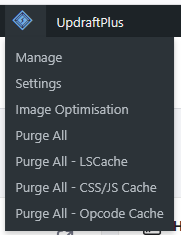
When you hover over the LiteSpeed diamond icon at the top of your WordPress dashboard, here is what those buttons actually do:
❌ Purge All: Deletes every single cached page on the server. Use this when making global changes (like changing a header/footer or updating a theme).
⚙️ Purge LSCache: Specifically clears the server-level page cache.
🎨 Purge CSS/JS Cache: Clears optimized, minified, or combined code styles. If you edited a stylesheet and the site looks broken, hit this.
Pro-Tip: If you make a change and it still isn’t showing up after a “Purge All,” remember there are multiple layers. Check your Browser Cache (test in an Incognito window).